| Allegro CL version 8.2 Minimal update since 8.2 release. 8.1 version | ||||||||
This document contains the following sections:
1.0 Installation introductionExcept for installing CLIM and/or the IDE on Macs, the installation of Allegro CL 8.2 is similar to installation of previous versions of Allegro CL such as Allegro CL 8.1. For CLIM/IDE installation on macOS, see here. Users of Allegro CL Express on the Mac go to mac-express-ide-installation.htm for Mac Express-specific instructions.
This document describes how to install Allegro CL and related products.
Allegro CL is downloaded. Customers receive instructions on how to download Allegro CL 8.2 over the net. Express users download their copy from the Franz Inc. web site (franz.com). Express users should go to Section 12.0 The Express Edition.
You can install Allegro CL from the download without any key or code (though you need a license file, as described below, in order to use Allegro CL). Once Allegro CL is installed, the documentation, including this file, is available in the doc/ subdirectory (this file is doc/installation.htm). A copy of this file is also available on the Franz Inc. web site (franz.com).
All types (Professional, Enterprise, etc.) of Allegro CL for a particular platform and all add-on products are downloaded onto your computer. A license file named devel.lic controls which products will be usable. This license file is supplied separately, as described in Section 10.0 Getting a license file. Allegro CL will not work without a license file properly installed in the Allegro directory. The download does not contain a license file. You must obtain a license file from Franz Inc. separately from the download.
If you do not have a license file or the license file you have does not seem to license the correct product mix, contact your Account Manager for information. (If that link does not work, call Franz Inc. in California, USA, at +1 510-452-2000 or send email to [email protected] or [email protected]. In email, be sure to identify yourself and provide information on how you can be contacted.)
Once you have installed Allegro CL and the license file is in place, you can use the licensed Allegro CL version and all licensed add-on products. If you upgrade your Allegro CL version, or purchase a license for an add-on product, you will be given an updated license file. You do not have to download further material (except in rare instances or when you have obtained a license for another platform). Simply installing the new license file makes the newly licensed products available for use.
The size of the Allegro directory after installation is approximately 250 Mbytes on UNIX/Linux/macOS and 225 Mbytes on Windows. More space may be required during installation for temporary files.
The minimal supported versions of the operating systems on platforms where Allegro CL runs are listed below. Allegro CL will generally work without change on operating system versions released after the release of Allegro CL 8.2. If you have a problem, contact [email protected] for assistance.
Before installing Allegro CL, consider the following:
It is not necessary to delete version 8.1 if you have that installed, but note that on Windows, the registry will be updated so extensions (such as .lpr and .dxl) refer to Allegro CL 8.2 instead of earlier versions.
If you have the Express Edition, see Section 12.0 The Express Edition. If you have the Student Edition, see Section 13.0 The Student Edition. For some platforms, you are directed back here from that section. In that case, skip down to step 3.
Here are the installation steps in brief:
On UNIX (including Linux and macOS): you download two files, acl82.bz2 (acl82express-[platform].bz2 for the Express edition (except on the Mac, where the Express only has .dmg files) and acl82student-[platform].bz2 for the Student edition) and bunzip2. (The [platform] is freebsd or linux-x85 of macosx-x86.) On macOS, you also download a .dmg file. You can install using the .bz2 file as described here or using the .dmg file as described Section 6.0 Installation on macOS (Allegro Express users must follow that link).
On Windows, you download one file, acl82.exe (acl82express-x86.exe for the express edition).
% cd /usr/tmp/
See Section 4.0 Notes for installation of Allegro CL on UNIX (including Linux) for more details.
Windows: find the download executable file in your Windows Explorer.
macOS: you can use the .dmg file -- go to Section 6.0 Installation on macOS.
% ./bunzip2 < acl82.bz2 | (cd /usr/local; tar xf -)
For the Express and Student editions, the bz2 filename has express-[platform] and student-[platform] appended.
See Section 4.0 Notes for installation of Allegro CL on UNIX (including Linux) for more details on this step.
Windows: run the exe file. Double click on it if using the Windows Explorer or execute it if at a Command Prompt. Follow the instructions that appear. See Section 5.0 Installation on Windows for full details.
(sys:update-allegro). See sys:update-allegro and also Patches and updates in
introduction.htm.
Note for Ubuntu users: you may may need to install an OS update. Ubuntu 11.04 (and likely later) does not contain 32bit compatability libraries and so 32-bit Allegro CL will not work. Add these with the command:
sudo apt-get install gcc-multilib ia32-libs
Once Allegro CL is installed, see Section 4.3 Testing that the installation of Allegro CL on Unix was successful for information on how to test that Allegro CL is installed properly. Linux users who have trouble starting Allegro CL after installation see Section 4.2 Allegro CL may have problems starting up when run on SELinux.
Also see these documentation files in the doc/ subdirectory to start with:
There is no Allegro Composer executable or image file after
installation. To use Allegro Composer, evaluate (require
:composer) after starting Allegro CL. An Allegro Composer
binary can be built by using
buildcomposer.cl. See
composer.htm. Allegro Composer is not available
with Allegro CL Express.
There is no CLIM image file, but one can be built using buildclim.cl. CLIM is not available with Allegro CL Express or Allegro CL Student.
Note for CLIM on Linux, FreeBSD: you must have version 2.2 or later of Motif. (Version 2.2 was released in early 2002.) A free version is available from www.openmotif.org. Redhat Linux 7.2 is supplied with Lesstif, a version of Motif that does not work with CLIM. See the Linux architecture specific information in the Allegro CL FAQ for information on how to install Redhat Linux 7.2 without lesstif and how to uninstall lesstif if already present. On all other Unix platforms, CLIM uses the platform-supplied Motif.
Note for CLIM on macOS: you must have version 2.2.2 Motif. This version is available at no charge from www.openmotif.org.
Users wishing to display Japanese characters need the k14 font. As also noted here in release-notes.htm, the k14 font is needed to display Japanese characters in a CLIM demo. This font appears to be missing from most X server font libraries. We are making available a public domain version of this font in the file [Allegro directory]/misc/k14.pcf. Please see your X server documentation for information on how to install this file as a valid font.
The Ubuntu Linux operating system, starting with release 14.04, stopped supplying the 32-bit libraries needed by 32-bit Allegro CL, including Allegro CL Express Edition. While 32-bit Allegro CL did continue to work in some cases, particularly when users upgraded to Ubuntu 14.04 (rather than installing it form scratch), we could not figure out a way to ensure in all cases that a user could use 32-bit Allegro CL with Unbuntu 14.04 (and later). As a consequence, we announced that that OS was no longer supported for 32-bit Lisps. (64-bit Allegro CL was not affected.)
Then an Allegro CL user pointed out that there was in fact a way to get 32-bit Allegro CL to work. Here are the steps:
  sudo dpkg --add-architecture i386
  sudo apt-get update
  sudo apt-get install libc6:i386
  sudo apt-get install libgtk2.0-0:i386
Once these commands complete, 32-bit Allegro CL should work. Contact [email protected] if you have any problems.
Security-Enhanced Linux, or SELinux is a feature that is available on many modern versions of Linux and is enabled by default on some. It affects the way shared libraries are loaded and that can prevent Allegro CL from starting up. The error you will likely see is something like:
cannot restore segment prot after reloc: Permission denied
Or the error can be segmentation fault. The solution is to mark the shared object files for special handling or to disable SELinux. See the Linux (Architecture Specific) section of the Allegro CL FAQ for futher details.
We will test the installation by starting Allegro CL from a shell prompt. To a shell prompt, enter the full path of the Allegro CL executable (on installation, one of mlisp, alisp, mlisp8, and mlisp8; only alisp is provided with the Express Edition) to the shell prompt.
Assuming the Allegro directory is /usr/local/acl82/ and that you wish to run the mlisp executable, enter:
/usr/local/acl82/mlisp
With the Express Edition, only alisp is provided, so do:
/usr/local/acl82-express/alisp
Allegro CL should start up. You will see the banner and perhaps additional messages, and the first prompt (the exact text depends on the platform and which image you are running, so you may see something slightly different from what is printed here):
Allegro CL Enterprise Edition 8.2
Copyright (C) 1985-2009, Franz Inc., Oakland, CA, USA.  All Rights Reserved.
;; Optimization settings: safety 1, space 1, speed 1, debug 2.
;; For a complete description of all compiler switches given the
;; current optimization settings evaluate (EXPLAIN-COMPILER-SETTINGS).
;; Current reader case mode: :case-sensitive-lower
user(1):
To the Lisp prompt user(1):, enter some form to ensure evaluation is working, like
(* 20 30):
user(1): (* 20 30)
600
user(2):
You may now either
exit Allegro CL by entering :exit (see the
top-level command :exit):
user(2): :exit
or you may continue using Allegro CL.
Download the distribution file specific to the platform you are using (this file will have a name like acl82.exe). Download into a location of your choice.
If you do not install either the Allegro CL documentation and the ANSI spec, shortcuts relating to documentation on the Allegro CL menu item on the Start menu will link you to versions on the Franz Inc. web site. (However, if you have the space, it is best to include the documentation.) If you include the Allegro CL documentation but not the ANSI spec, links from the Allegro CL documentation to the ANSI spec will not work.
Check or uncheck the desired options. Click Cancel to cancel installation, Back to choose a different location, and Next to continue. If you click Next again, the installation will take place.
Patches (correcting bugs or providing
new features) are released for Allegro CL regularly. For normal usage,
we recommend that you update regularly, including immediately after
installation. Do this by starting Lisp and evaluating
(sys:update-allegro). See sys:update-allegro and also Patches and updates in
introduction.htm.
Allegro CL is now installed. See these documentation files to start with. (Allegro CL Express and Allegro CL Student users look at documentation on the Franz Inc. Website, specifically here. Links on that page go to the documentation files for your version and also tell you how to download your own copy if desired.)
The next section describes how to test the installation on Windows.
We will test the installation by starting Allegro CL from the menu. You should see an `Allegro CL 8.2' item on the Programs submenu of the Start menu. (`Allegro CL 8.2 Free Express Edition' for the Express Edition and `Allegro CL 8.2 Student Edition' for Student.) That item has a submenu, with (among other items) submenus Modern ACL Images and ANSI ACL Images. We will start a Modern ACL with the IDE in this example. The Express does not have submenus for images, since only one is supplied (there are submenus for other things).
Choose
Start | Programs | Allegro CL 8.2 | Modern ACL Images | Allegro CL 8.2 (w IDE, Modern)
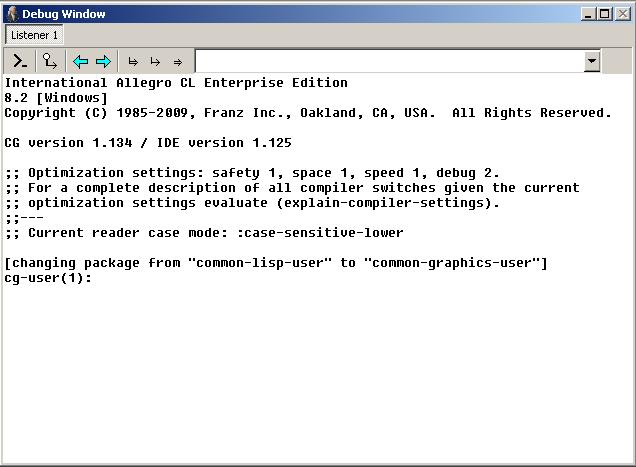
(or Start | Programs | Allegro CL 8.2 Free Express Edition | Allegro CL 8.2 Free Express Edition or Start | Programs | Allegro CL 8.2 Student Edition | Allegro CL 8.2 Student Edition). You should see a splash window and then a window titled `Allegro Common Lisp Console'. Shortly thereafter, the Allegro CL Integrated Development Environment windows appear, typically starting with some dialogs which you must resond to or dismiss (dismissing is okay). After everything is started, your screen will have various windows, including the Debug (i.e. Listener) window shown here:
One of the dialogs that may appear, if you have worked on projects in the IDE in earlier sessions, is the Startup Action dialog, which asks if you want to open one of these recent projects. (We do not show it because we are assuming you have just installed Allegro CL. Note the Express edition does not have a startup dialog.)
To the prompt cg-user(1):, enter the form
(+ 1 2):
cg-user(1): (+ 1 2)
3
You may now either exit Allegro CL by choosing File | Exit (that is, the Exit choice from the File menu) or you may continue using Allegro CL. If you choose to exit, a dialog will appear asking if you really want to exit. Answer Yes.
If you have installed or are about to install macOS version 10.10, them you must update Allegro CL 8.2 as described in this section Section 6.2 Updating for macOS 10.10 below. Allegro CL will not start up until it is updated once macOS 10.10 is installed. It is best to update prior to installing macOS 10.10 if possible. Users newly installing Allegro CL 8.2 should also update after installation. XQuartz must also be reinstalled after upgrading to macOS 10.10.
Users who also have Allegro CL 9.0 installed, please note 9.0 also needs an update but does not fail to start up without it, so updating is easier. Please see this section in the Allegro CL 9.0 Installation Guide for instructions (which are different from the Allegro CL 8.2 instructions).
Users of Allegro CL Express on the Mac go to mac-express-ide-installation.htm for Mac Express-specific instructions.
Allegro CL on macOS is distributed both as a .dmg file and as a .bz2 file (there is no bz2 file available for the Allegro CL Express edition). You may install using the .dmg as described in this section, or using the .bz2, as described in Section 3.0 Installation steps. If you are using CLIM or the IDE, you must install X11 and associated tools, as described in Section 6.1 Installing X11, GTK, and Open Motif on macOS. The rest of this section assumes you are installing with the .dmg file.
The .dmg file for Allegro CL 8.2 is called acl82.dmg. If you use CLIM or the IDE, you will need X11, GTK (for the IDE only), and Open Motif (for CLIM only -- note a different version than the one used for 8.1). See Section 6.1 Installing X11, GTK, and Open Motif on macOS for instructions on installing those tools (or just install Allegro CL and continue to the subsection on installing X11, GTK, and Open Motif).
Allegro CL requires macOS 10.5 or later.
This is how to install Allegro CL on the Mac:
That's all there is to the installation. Just click and drag it somewhere. Of course, /Applications is a good location to use, if you don't know where to put it. It will run from anywhere.
You should download available patches. See sys:update-allegro. Note: the IDE executable
(allegro) will not start until GTK is installed (as described
in the next section) and images have been updated. You must download
patches by starting mlisp or alisp,
evaluating (sys:update-allegro) and then (outside
Lisp) running update.sh.
This rewrite of the instructions was done in March, 2011. Installation for both the 32-bit and 64-bit Lisp with the IDE is greatly simplified. If you have any difficulty, please contact [email protected] for assistance.
The IDE/Common Graphics require GTK and X11, and CLIM additionally requires the OpenMotif libraries.
There are three steps:
If you should get an error message about insufficient permissions, it is likely you have an older version of the framework installed. To get rid of the old version, type this into a terminal window:
sudo rm -rf /Library/Frameworks/{Gtk,Cairo,GLib}.framework
and retry this step.
(sys:update-allegro), exit Lisp, and run
update.sh. Once images are updated, the allegro
executable will work.
After the Gtk.framework file is installed in this directory, the IDE and Common Graphics (see cgide.htm) will be ready to use.
To repeat what is said above, it appears installing macOS 10.9 (Mavericks) on a machine with XQuartz (X11) installed breaks the XQuartz installation. After installation of Mavericks, you must reinstall the latest XQuartz version from http://xquartz.macosforge.org/landing/. This is true even if you have installed the latest XQuartz version prior to installing Mavericks.
The symptom of a broken XQuartz is blank rectangles that should be filled with text in Common Graphics and Gruff displays.
The steps are:
universal_archs contains
just i386 and x86_64 (order does
not matter). That is make sure the line is either:
universal_archs i386 x86_64
or
universal_archs x86_64 i386
If it includes ppc or just i386,
then change it to the above. If it includes other architectures,
please let us know
([email protected]) before
continuing.
sudo port install openmotif +universal
Installation on macOS is now done. See Section 6.3 Testing that the installation of Allegro CL on macOS was successful, where we show how to test the installation and also how to get the latest patches.
Without the patches released in September, 2014, Allegro CL 8.2 on the Mac will not start up (and, because it is based on Allegro CL, the update program update.sh will also not work). Therefore, if you have not installed macOS 10.10, please update Allegro CL by running
./update.sh -u
in the Allegro directory (/Applications/AllegroCL) before upgrading the OS. Further, the version of the GTK Framework provided with the Allegro CL distribution will also not work. You must download and install a new version, following the steps below. Finally, XQuartz must be reinstalled after upgrading to macOS 10.10, as instructed in Section 6.2.1 Reinstalling XQuartz after upgrading to macOS 10.10.
If, however, you have already installed macOS 10.10, things are more complicated. You will likely have noticed that Allegro CL 8.2 will not start up. Because the update program update.sh depends on Allegro CL. it also will not work. Therefore, relevant patches have to be downloaded and installed by hand, as we describe next. Note there are different download for the 32-bit version and the 64-bit version but the steps are the same.
From a Terminal, execute the following:
   $ cd /Applications/AllegroCL
   $ ftp ftp.franz.com
Once in ftp, you will be prompted for a name. Enter ftp for anonymous access. Enter your email address as the password. Once in, do the following:
   cd /pub/patches/8.2
   get macosx86.tar
   quit
Now back to the shell. While still in the Allegro directory, do:
   $ tar xvf macosx86.tar --strip-components 1
   $ rm macosx86.tar
   $ ./update.sh
The GTK Framework must also be updated. First remove the previous version of the GTK Framework:
$ sudo rm -fr /Library/Frameworks/Gtk.framework
Now download the new GTK Framework:
https://franz.com/ftp/pub/macosx/GTK+-Framework-2.24.pkg
Then install the new Gtk Framework by double-clicking on the file you downloaded in the previous step and follow the prompts.
The final step is to install a new XQuartz after upgrading to macOS 10.10. See Section 6.2.1 Reinstalling XQuartz after upgrading to macOS 10.10.
From a Terminal, execute the following:
   $ cd /Applications/AllegroCL
   $ ftp ftp.franz.com
Once in ftp, you will be prompted for a name. Enter ftp for anonymous access. Enter your email address as the password. Once in, do the following:
   cd /pub/patches/8.2
   get macosx86-64.64.tar
   quit
Now back to the shell. While still in the Allegro directory, do:
   $ tar xvf macosx86-64.64.tar --strip-components 1
   $ rm macosx86-64.64.tar
   $ ./update.sh
The GTK Framework must also be updated. First remove the previous version of the GTK Framework:
$ sudo rm -fr /Library/Frameworks/Gtk.framework
Now download the new GTK Framework:
https://franz.com/ftp/pub/macosx/GTK+-Framework-2.24.pkg
Then install the new Gtk Framework by double-clicking on the file you downloaded in the previous step and follow the prompts.
See Section 6.2.1 Reinstalling XQuartz after upgrading to macOS 10.10.
Installing macOS 10.10 apparently breaks any currently installed XQuartz, which is needed to use the IDE. So once you have updated Allegro CL 8.2, installed macOS 10.10, and installed the new GTK Framework, you must reinstall XQuartz. (A sign that XQuartz is out of date is text in the IDE appears as hollow rectangles rather than actual letters).
Download from http://xquartz.macosforge.org/downloads/SL/XQuartz-2.7.7.dmg.
Make sure you have downloaded patches with sys:update-allegro. The allegro image may
not start because it may needs patches installed and images
updated. In that case, start one of the non-IDE images (such
as mlisp or alisp),
evaluate (sys:update-allegro), exit Lisp, and run
update.sh. Once images are updated, the allegro
executable will work.
We will test the installation by starting Allegro CL from a Terminal Window. To the prompt in a Terminal Window, enter the full path of the Allegro CL executable (on installation, one of mlisp, alisp, mlisp8, and mlisp8; only alisp is provided with the Express Edition) to the shell prompt.
Assuming the Allegro directory is /Applications/AllegroCL/ or /Applications/AllegroCL64/ and that you wish to run the mlisp executable, enter:
/Applications/AllegroCL/mlisp
or
/Applications/AllegroCL64/mlisp
With the Express Edition, only alisp is provided, so do:
/Applications/AllegroCL/alisp
Allegro CL should start up. You will see the banner and perhaps additional messages, and the first prompt (the exact text depends on the platform and which image you are running, so you may see something slightly different from what is printed here):
Allegro CL Enterprise Edition 8.2 [Mac OS X]
Copyright (C) 1985-2009, Franz Inc., Oakland, CA, USA.  All Rights Reserved.
;; Optimization settings: safety 1, space 1, speed 1, debug 2.
;; For a complete description of all compiler switches given the
;; current optimization settings evaluate (EXPLAIN-COMPILER-SETTINGS).
;; Current reader case mode: :case-sensitive-lower
user(1):
To the Lisp prompt user(1):, enter some form to ensure evaluation is working, like
(* 20 30):
user(1): (* 20 30)
600
user(2):
You may now either
exit Allegro CL by entering :exit (see the
top-level command :exit):
user(2): :exit
or you may continue using Allegro CL.
We no longer supply a version of Emacs on the CD. In past releases, the version on the CD quickly became out of date. Emacs is easily downloaded from multiple sources on the net. See franz.com/emacs/ for information.
There is a downloadable installer for GNU Emacs on Windows on franz.com/emacs/. That same location has links to locations from which to download Emacs for Unix platforms.
Once you have Emacs installed on your machine, you need to have it load the Emacs-Lisp interface files when it starts up. You do this by putting the appropriate form in your .emacs file, as described:
(load "c:/acl82/eli/fi-site-init")
That form assumes you installed Allegro CL in the standard location, [Main Drive, typically C]:\acl82\. Replace that with the correct location if it is different.
(load "/usr/local/acl82/eli/fi-site-init")
That form assumes you installed Allegro CL in the standard location, /usr/local/acl82/. Replace that with the correct location if it is different.
The page at franz.com/emacs/ has additional recommendations for the .emacs file, along with a list of convenient key bindings. See also eli.htm: this is the documentation file for the Emacs-Lisp interface.
Note: the contents of this section were updated in January, 2016 and again in May, 2016. The updates affect versions 8.2, 9.0, and 10.0.
For customers with an Enterprise license (or above), Allegro CL supports the Secure Socket Layer (SSL) protocol, as described in Secure Socket Layer (SSL) in socket.htm. The OpenSSL libraries are necessary to make use of this facility. Prior to a patch release in May, 2016, the Allegro CL distribution included the OpenSSL libraries for all platforms except Windows. Now, no OpenSSL libraries are included with teh Allegro CL distribution. (This allows users usually to have the latest OpenSSL version without an update to Allegro CL.)
Many linux platforms and the Mac include OpenSSL as part of the regular OS installation. On such platforms, no action is typically required to use OpenSSL with Allegro CL. If your platform does not include OpenSSL libraries or if for some reason you want a different version than that supplied by the OS, get further information at openssl.org. See Secure Socket Layer (SSL) in socket.htm for further information and instructions on how to ensure Allegro CL can find the OpenSSL libraries when required.
NOTE: do not use the file openssl.exe in the Allegro CL distribution. It is out of date and has missing files.
Allegro CL comes with various add-on products, such as the CLIM windowing system and Orblink. Some require additional licenses. Others are available to all users. All material needed for these products is in the distribution. Only the license file determines whether products can be used or not. Contact your Franz Inc. Account Manager for information on licensing.
You must have a license file to use Allegro CL and its associated products. The license file is not included with the distribution.
Professional and Enterprise customers with current maintenance agreements should have received an email message from Franz Inc. with instructions on how to obtain their license file. Express Edition customers should receive such an email after providing the necessary information to Franz Inc. (usually by filling in a form on the Franz Inc. web site, franz.com).
The email sent by Franz Inc. gives an URL from which the license file can be retrieved. The email is in Mime format, with plain text and HTML versions. If you are able to read mail in a mime-enabled client, you will be able to click on the URL immediately.
You should retrieve the license as soon as you receive the email even if you have not downloaded the software. Then the license file will be ready when you install Allegro CL. The name of the file when it is put in the Allegro directory must be devel.lic. However, you may use any name when retrieving, renaming when you copy it to the Allegro directory later.
The license file is a text file which includes encrypted text. See The Allegro CL license file in startup.htm for a sample (with the encrypted text much and obviously modified).
If you upgrade your license or purchase add-on products, you will be sent email with instructions for retrieving a new license file. Placing the new license file in the Allegro directory is all you must do to use the upgraded version of the new add-on products.
If you do not have a license file or the license file you have does not seem to license the correct product mix, contact your Account Manager for information. (That link goes to the file introduction.htm. If that link does not work, call Franz Inc. in Oakland, California, at +1 510-452-2000 or send email to [email protected] or [email protected]. In email, be sure to identify yourself and provide information on how you can be contacted.)
In order to get source code (if your license allows it), you must return the source code license addendum included with the distribution. When that addendum is received, you will be sent a new license which allows installing source code. (Some sources are free to licensed customers and others are provided for an additional charge. If you have questions about getting source code, please contact your Account Manager.)
The sources available are:
To install sources, do the following:
Assuming you have the new license with the source code module included, the encrypted source files in the src/ directory should be unencrypted and expanded so the source code will be located in subdirectories of the src/ directory.
The 8.2 Free Express Edition contains the express license. Installation instructions for Windows, Linux and FreeBSD, and macOS are next.
Run acl82express-x86.exe (it may run automatically when you download it). The program when installed will use about 120 Mbytes. of space.
The license file included. If you have license problems, please contact us ([email protected]) for help.
You should download patches by selecting the Rebuild images (download new patches first) menu item on the Start | Programs | Allegro CL 8.2 Express menu. (Or use one of the other ways to download patches -- see sys:update-allegro).
Only the allegro.dxl image is provided. Other images can be created, as described in Section 12.3 Creating additional Express Edition images on Windows.
Note for Ubuntu users: you may may need to install an OS update. Ubuntu 11.04 (and likely later) does not contain 32bit compatability libraries and so 32-bit Allegro CL requires special action. See Section 4.1 Getting 32-bit Allegro CL to run on 64-bit Ubuntu for more information.
When installed, Allegro CL Express will use about 210 Mbytes of space.
% chmod 755 /tmp/bunzip2
For Linux:

% bunzip2 < /tmp/acl82express-linux-x86.bz2 | (cd /usr/local; tar xf -)

For freebsd:

% bunzip2 < /tmp/acl82express-freebsd.bz2 | (cd /usr/local; tar xf -)
The file mac-express-ide-installation.htm describes the installation of Allegro CL Express on the Mac. A briefer description follows here.
The version of the Mac is only available with a dmg file. The Express edition on the Mac is not available as a bz2 file. To use the dmg file (acl82express-macosx-x86.dmg), follow the instructions below.
When installed, Allegro CL Express will use about 210 Mbytes of space.
For post-installation information, see:
The Express Edition, available for Windows, FreeBSD, Linux, and macOS (for Intel processors), is provided free of charge so that potential users may gain experience using Allegro CL and some add-ons before purchasing. The Express Edition is fully described on the Franz Inc. web site (franz.com, click on the Download button to see information about Express software). That information may be updated more frequently than the information here. If there is a conflict between the information on the Web site and the information given here, the information on the Web site is correct.
CLIM and Allegro Composer are not available with Allegro CL Express.
To obtain an Express Edition, you fill out an information form on the Franz Inc. web site. Then, on Windows, you download a self-installing executable while on UNIX and UNIX-like platforms, you download a compressed file which does the installation when uncompressed. On both Windows and UNIX, the installation also obtains the license file needed to run the software (you must be connected to the internet during installation).
The Express Edition must be downloaded. The Windows version does not include the documentation (but instead links to the documentation on the Web site).
Because there were many problems with downloading license files (many associated with firewalls, proxies, and the like), we have a new license scheme: you get a license with the download. That license will expire. When it does, you can either downlo9ad a new version of Express of (typically if a new version is not available or there are resons to still support an older version), you can download the same version again.
To use the IDE on Linux, just as on Windows, you invoke the allegro or allegro-express executable. The associated image includes the IDE and starts it when Allegro CL is started. You do this also with Allegro CL Express on Linux on x86 processors.
But in Allegro CL Professional and Enterprise, you can also start a non-IDE image (alisp or mlisp) and load the IDE and call ide:start-ide (as described in cgide.htm). This second method does not work in Allegro CL Express Edition. To use the IDE, you must use the allegro-express executable/image.
Thus, you start Allegro CL in Emacs with the Emacs function fi:common-lisp (see Running Lisp as a subprocess of Emacs in startup.htm). When you are asked for the Executable Image Name, specify allegro (for a case-sensitive, modern image) or allegro-ansi (for a case-insensitive ANSI image). The IDE will start when Allegro CL does.
To make the downloadable file as small as possible, on Windows we have only included one Allegro CL image, allegro-express.exe, one that includes the IDE and is in International "ANSI" mode (case insensitive upper, as opposed to case sensitive lower of "Modern" images).
The other images which are commonly found in an Allegro CL installation are:
| mlisp | Modern base Lisp image, international (16-bit characters) |
| alisp | ANSI base Lisp image, international (16-bit characters) |
| allegro | Modern IDE image, international (16-bit characters) |
| alisp8 | ANSI base Lisp image, 8-bit characters (not available with express) |
| mlisp8 | Modern base Lisp image, 8-bit characters (not available with express) |
To build one of the available above images (the 8-bit images are unavailable) see readme.txt in the distribution directory.
The Student Edition, available for Windows, FreeBSD, Linux, and macOS (for Intel processors), is available for sale at the Franz Store. It is a slightly restricted version of the Professional Edition of Allegro CL 8.2. Certain add-ons are not supported in the base product, but are available for purchase. Sale is restricted to bona fide students. The Student Edition is fully described on the Franz Store web site. That information may be updated more frequently than the information here. If there is a conflict between the information on the Web site and the information given here, the information on the Web site is correct.
When you purchase a Student Edition, you will receive an email with information on retrieving a license (see Section 10.0 Getting a license file) and information on downloading.
To reduce the download time, the documentation is not included in the Student Edition download. The documentation is available at https://franz.com/support/documentation/. There are links on that page allowing you to download the documentation if desired. The Windows version includes standard Windows tools for accessing documentation. These automatically link to the version on the Website unless the documentation is downloaded.
Here are the installation steps for the student Edition in brief:
% ./bunzip2 < acl82_student.bz2 | (cd /usr/local; tar xf -)
macOS: run the dmg file. Find the acl82_student.dmg image and double click on it. It will open the dmg file and mount the disk image.
Windows: run the exe file. Double click on it if using the Windows Explorer. Execute it if at a Command Prompt or a DOS prompt. Follow the instructions that appear.
(sys:update-allegro). See sys:update-allegro and also
Patches and updates in
introduction.htm.
If you get an error when starting Allegro CL on Linux, it may be the SELinux problem. See Section 4.2 Allegro CL may have problems starting up when run on SELinux for more information.
Somewhat more verbose instructions are available in Section 4.0 Notes for installation of Allegro CL on UNIX (including Linux) for Linux and FreeBSD; in Section 6.0 Installation on macOS for macOS; and in Section 5.0 Installation on Windows for Windows.
We wish getting Xcode for macOS 10.5 were easier (it is very easy for macOS 10.6 -- just go to a website and download). You have to sign up as an Apple developer and then navigate through some web pages to get to the right download page. Note these instructions worked for us when this was written, but pages may have changed. If you have difficulty, please contact us at [email protected].
The steps are:
Once Xcode is downloaded and installed, click here to return to the installation instructions.
Copyright (c) 1998-2016, Franz Inc. Oakland, CA., USA. All rights reserved.
This page has had moderate revisions compared to the 8.1 page.
Created 2016.6.21.
| Allegro CL version 8.2 Minimal update since 8.2 release. 8.1 version | ||||||||